
Island Millwork
Island Time · Help
Back to Island Time

How do I…

Short answers with a clip of the real screen. Search for what you see, like a button name or "PTO".

On the screen you came from

1 thing people usually do here.

2s

Get back in when sign-in is refused

See
The sign-in page shows a red banner reading Invalid Email/Password Combination.
Do
Retype your work email in Email and your password in Password, then press Log in.
Good
The sign-in card is gone and Island Time opens with a welcome message at the top.
What's new

Recent changes to Island Time, newest first.

2026-10-12

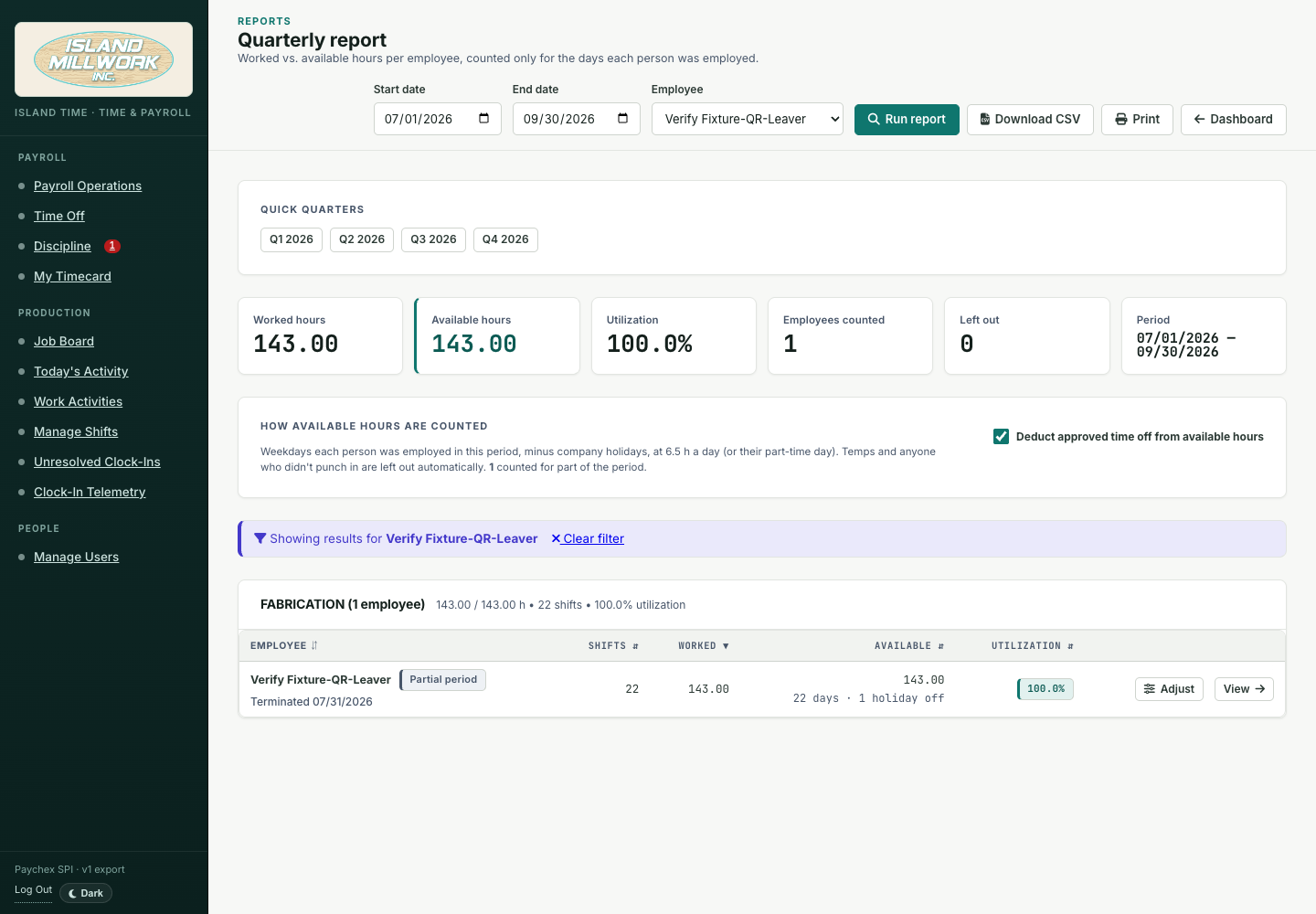
The quarterly report now counts only the days each person worked

People who left or started partway through a quarter used to be measured against the whole quarter, which dragged their numbers down. Now each person is measured from their hire date to their last day.

  • Taking someone off the roster asks for their last day and a reason.
  • Employment dates (hire, termination, part-time hours per day) live on Manage Users → Edit.
  • Adjust on any row counts someone, leaves them out, or sets their hours for that quarter.
  • Approved time off comes out of available hours, with a switch to turn that off.
For: Payroll and the office Where: Reports → Quarterly report → Adjust; Manage Users → Edit → Employment dates
After: 100% of the days they were here

At the tablet

4s

Find yourself on the tablet

See
The shop tablet shows a number keypad under the heading Enter your PIN.
Do
Tap your four PIN digits on the keypad, then press the green check key labelled Enter PIN.
Good
The clock screen opens with your first name at the top of the status banner.
5s

Start a shift on a job

See
The clock screen says you are not clocked in and shows the Look up a job box.
Do
Type the job number under IM number (4 digits), press Check Job, then press the green Start Shift on IM button.
Good
A green panel says you are clocked in and shows that IM number under it.
6s

Clock out at the end of the day

See
The clock screen shows the red End Day button while the banner says you are on the clock.
Do
Press End Day on the clock screen.
Good
The tablet returns to the PIN pad with a green message that you are clocked out for the day.
6s

Punch out for lunch

See
The clock screen shows the amber Lunch button beside Switch job and End Day.
Do
Press Lunch as you leave for your break.
Good
The tablet returns to the PIN pad with a green message that you are out to lunch.
6s

Switch to a different job

See
The clock screen shows the IM number you are on now and a Switch job button, and after Start Shift on IM a Confirm job switch panel appears.
Do
Press Switch job, look the new number up with Check Job, press Start Shift on IM, then confirm with the amber Switch Job to IM button.
Good
The green panel says you are clocked in and shows the new IM number.
5s

Start a shift when the tablet cannot find your IM

See
A yellow box says Manager review needed because that IM number was not found in active jobs.
Do
Press Start Uncategorized Shift so your time keeps running, and tell a manager which number you tried.
Good
The green clocked-in panel appears and the message says the shift went to Uncategorized for manager review.

From your phone

3s

Start a shift from your phone

See
The Clock-in job board lists job cards, each with an IM number and a Start Shift button.
Do
Find your job card, press Start Shift, then press Punch In on the form that opens.
Good
The job page opens with your name on a shift row that has a start time and no end time.
3s

End a shift from your phone

See
My Timecard shows a teal On clock pill and a red End day button.
Do
Press End day in the My clock card.
Good
A green message says you are clocked out and the pill now reads Ready.
3s

Punch out for lunch from your phone

See
My Timecard shows the amber Lunch button beside End day while you are on the clock.
Do
Press Lunch before you leave for your break.
Good
A green message says you are out for lunch and tells you to clock back into a job when you return.
2s

Get back in when sign-in is refused

See
The sign-in page shows a red banner reading Invalid Email/Password Combination.
Do
Retype your work email in Email and your password in Password, then press Log in.
Good
The sign-in card is gone and Island Time opens with a welcome message at the top.

Your timecard and time off

2s

Acknowledge your timecard

See
A bar at the bottom of My Timecard asks whether the hours look right for the pay period.
Do
Read your week, then press Acknowledge.
Good
The bar disappears and a teal Acknowledged pill sits at the top of the page.
3s

Flag a problem on your timecard

See
The Confirm or flag card holds a Flag an issue box under your week of hours.
Do
Write what is wrong in Flag an issue, then press Flag.
Good
Your note appears under Open notes with a status pill beside it.
3s

Ask for time off

See
The Time Off card on My Timecard has Type, Date, Hours, and Note fields.
Do
Pick a Type, set the Date and Hours, then press Send request.
Good
That day appears under Your Requests with an amber requested pill.

Office

2s

Fix a punch on a timecard

See
A row in the pay period timecard table has a missing or wrong clock time.
Do
Click that row's In or Out cell, choose the right time, then press Enter.
Good
The row redraws with the corrected time and its Hours figure updates.
3s

Approve a timecard

See
A paycard in the pay period shows a clean week with no open issues.
Do
Press Details & actions, then press Approve this card.
Good
That paycard picks up an Approved badge.
2s

Confirm a system adjustment

See
The review panel shows a Needs reconciliation row with a Confirm adjusted time button.
Do
Read the payroll effect line, then press Confirm adjusted time.
Good
The row loses its red review styling and the Needs reconciliation count drops by one.
3s

Assign a shift for someone

See
The Assign a Shift form asks for an employee, a job, and a start time.
Do
Choose Select Employee and Select Job, set Shift Start Time, then press Assign Shift.
Good
The job board opens with a green message that the shift was assigned.
3s

Edit someone's shift

See
Manage Shifts lists the time-fixing tools, starting with the Job Dashboard tile.
Do
Open the job, click the shift number in its list, correct New Punch In Time or New Punch Out Time, then press Update.
Good
The job page reopens with the corrected Started Shift and Ended Shift times on that row.
2s

Decide a time-off request

See
The Time Off Requests table lists an amber requested row with its date and hours.
Do
Check the dates and hours, then press Approve in the Actions column.
Good
That row's pill turns teal and reads approved.
3s

Lock the pay period

See
The Export, lock, and reconciliation panel shows a Lock reason box and no blocking validation items.
Do
Type why you are locking in Lock reason, then press Lock period.
Good
The pill beside the period name reads locked.
3s

Lock a pay period that refuses to lock

See
A red banner says to resolve blocking payroll validation items before locking.
Do
Fill Lock reason, clear every line under Export blockers with Review card, then press Lock period again.
Good
The blockers list reads no blocking validation items and the period pill reads locked.
3s

Export the week to Paychex

See
The period pill reads locked and the Export CSV button sits under Export confirmation.
Do
Press Export CSV in the Export, lock, and reconciliation panel.
Good
The CSV file downloads and a new row shows under Export history.
2s

Export to Paychex when the export is blocked

See
A red banner says the export is blocked until the pay period is locked and validation is clear.
Do
Press Lock period first, clear anything under Export blockers, then press Export CSV again.
Good
The CSV file downloads and a fresh row appears at the top of Export history.

Reports and people

3s

Record someone's last day

See
Manage Users lists everyone with a Yes or No button in the Active Roster column.
Do
Press Yes next to the person, set Last day worked / termination date, add a reason if you have one, and press Remove from roster.
Good
A banner says they were removed from the active roster, and their roster button now reads No with the date they left.
3s

Set someone's employment dates

See
Edit user has an Employment dates card with Hire date, Termination date and Standard hours per day.
Do
Fill in the dates you know, add Standard hours per day only for a part-timer, and press Save employment dates.
Good
The page reloads with the dates you entered saved in the Employment dates card.
3s

Adjust someone on the quarterly report

See
The quarterly report shows each person's worked and available hours with an Adjust button on their row.
Do
Press Adjust, pick Always count or Leave out or type new Available hours with a note, and press Save.
Good
Their row shows Hours adjusted, and the available hours say set by hand next to the calculated number.

Nothing matches that yet. Try a button name you can see on the screen.

Not covered here yet: Passwords and tablet PINs, Work Activities, Clock-In Telemetry, Discipline write-ups, Unresolved Clock-Ins. Ask Tito.